Blog · 5 min read
Christmas Gift List Template for Google Sheets (and How to Set It Up)
How to build a Christmas gift list in Google Sheets that tracks ideas, budget versus spent for every person, and what's bought, wrapped and given.
Published · SoftPlan Treasures
Every December starts the same way: a few ideas in your notes app, a screenshot of something you liked in October, a vague sense that you've already bought something for your nephew but can't remember what. A gift list in Google Sheets fixes that. It's free, it's on your phone and your laptop, and you can share it with a partner so you don't both buy the same thing.
Here's how to set one up so it does more than list names: so it tells you, at any moment, how much you have left.
What a good gift list needs to answer
Before choosing columns, think about the questions you actually ask yourself in December:
- Who am I buying for, and what did I want to spend on them?
- Do I have an idea yet? Have I decided?
- Have I bought it? Wrapped it? Given it?
- How much have I spent in total, and how much is left?
Every column in your sheet should help answer one of those questions. Anything else is decoration.
The columns to use
Create a new spreadsheet in Google Sheets and add these headers in row 1:
| Column | What goes in it |
|---|---|
| Person | One row per person |
| Budget | What you plan to spend on them |
| Idea | Anything you might buy |
| Gift | What you actually chose |
| Shop | Where you'll buy it, or a link |
| Price | What it really cost |
| Bought | A checkbox |
| Wrapped | A checkbox |
| Given | A checkbox |
To add checkboxes, select the cells under Bought, Wrapped and Given and choose Insert → Checkbox. Freeze the first row with View → Freeze → 1 row so the headers stay visible when you scroll on a phone.
Simple formulas that do the work
You only need three totals to stay on track. Put them above or beside the list:
- Total budget:
=SUM(B2:B60) - Total spent:
=SUM(F2:F60) - Left:
=SUM(B2:B60)-SUM(F2:F60)
To count how many gifts you've bought, use =COUNTIF(G2:G60, TRUE). Swap the column letter to count wrapped and given gifts.
For a per-person check, add one more column called Difference with =B2-F2 and drag it down. Then use Format → Conditional formatting to turn the cell soft pink when the number drops below zero. Now you can see at a glance who went over budget.
When one person gets several gifts
The simple layout above assumes one gift per person. Real life is messier: stocking fillers, a main gift and a small extra. You have two options:
- One row per gift, repeating the person's name. Then use
=SUMIF(A:A, "Mum", F:F)to see the total spent on one person. - Two tabs. A People tab with one budget per person, and a Gifts tab with one row per gift. The People tab totals each person's gifts with
SUMIF. This is cleaner, and it's how most good templates work.
Make it work on your phone
Most gift shopping and remembering happens on the go, so test your sheet in the Google Sheets app:
- Keep it narrow. On a phone, five or six columns are about the limit before you have to scroll sideways.
- Put the most-used columns, Person, Gift, Price and Bought, on the left.
- Use checkboxes instead of typing "yes".
- Keep totals at the top, not at the bottom of a long list.
Share it, carefully
If you're shopping as a couple or a family, use Share and invite the other person as an editor. One shared list ends the "I thought you were getting that" problem. Just remember not to share it with anyone who's on it.
Excel or Google Sheets?
Both work. Google Sheets is free and syncs between devices automatically. If you start with an Excel file, you can upload it to Google Drive and use File → Save as Google Sheets to get a native copy; Google's own help page explains what carries over between the two (Google Docs Editors Help: Use both Excel & Sheets).
Don't forget everything around the gifts
Gifts are only part of Christmas spending. Wrapping, cards, postage, food, baking and travel all draw from the same pot. If you track those somewhere else, or not at all, the gift list can look perfect while the total quietly runs over. Our guide on how to make a Christmas budget includes a free checklist of those easy-to-forget costs.
Or skip the setup
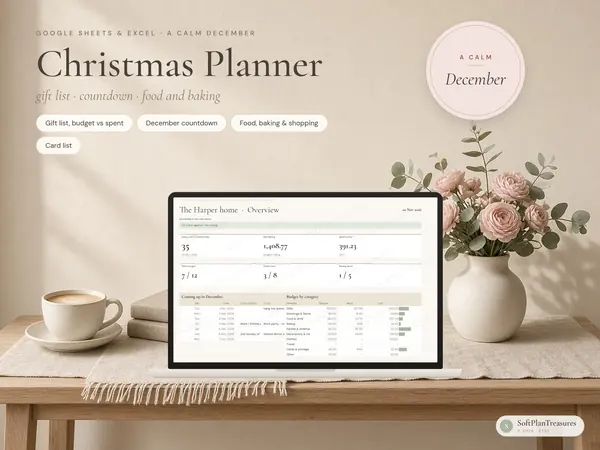
If you'd rather open a finished file than build one from scratch, our Christmas planner is the same idea, finished and styled:
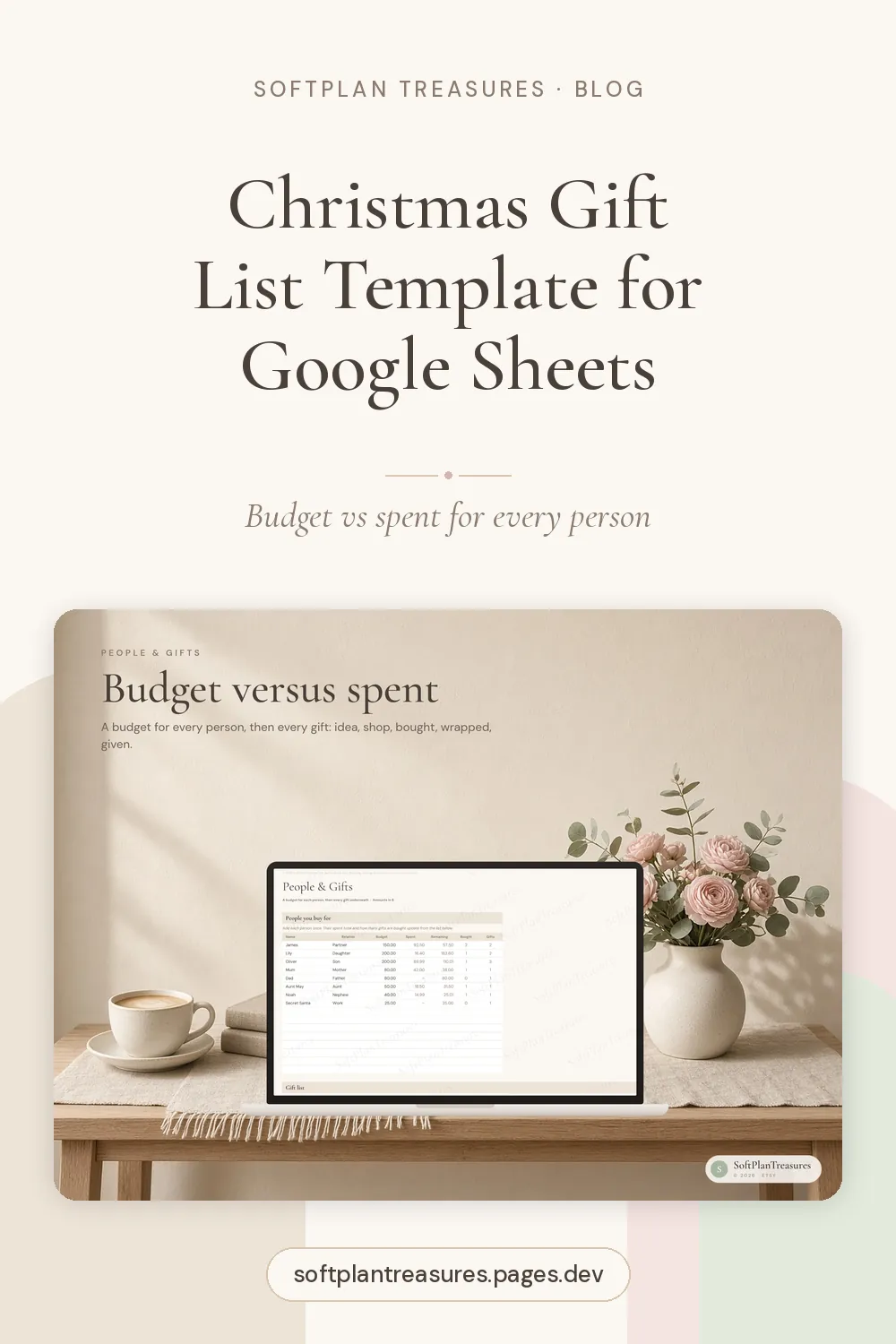
- People & Gifts: a budget for every person, then each gift with idea, chosen gift, shop, bought, wrapped and given
- Budget: ten categories with budget versus spent, plus a ceiling for the whole season
- December: a countdown calendar where you can write a to-do on any day
- Food & Baking: menus, a baking plan and a shopping list that adds itself to the budget
- Cards: a greetings list with postage that rolls into the total
It works in Google Sheets and Excel, comes with a blank copy and a filled-in example, and includes printable pages if you like ticking things off on paper.
A calmer December starts with one list
You don't need a complicated system. You need one place where every gift has a budget, every purchase has a price, and the total is always visible. Set it up once, and next year you only need to make a copy.